Step 0 of 6 ⏱ about 5 min
Check the board uploads
What you're adding
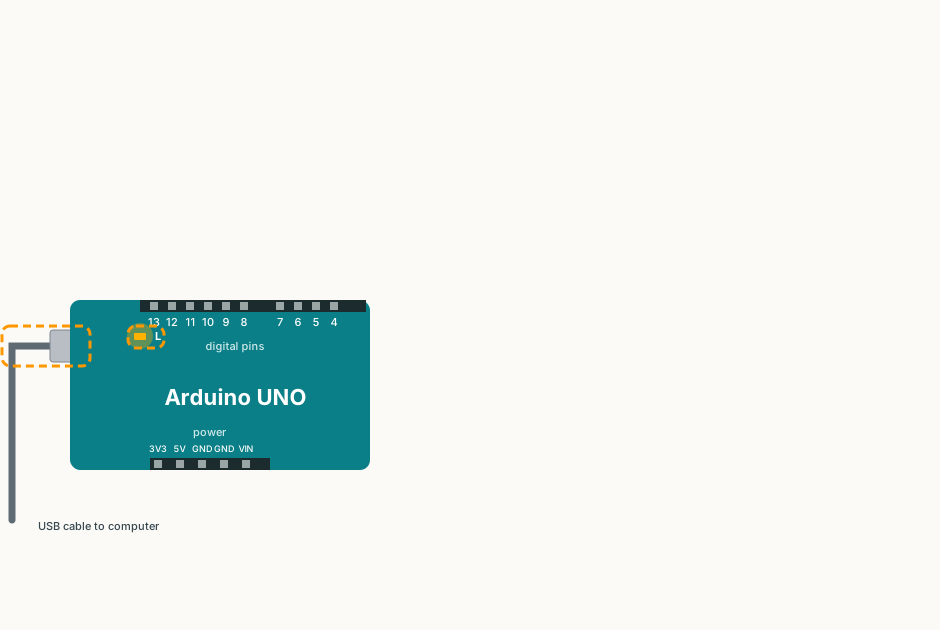
No wires yet. Just the Arduino and its USB cable. This step proves your computer can send code to the board. If this works, every later upload will work too.
Get ready
✔ All ticked. Now upload the code.
Find your port
A port is the “socket” on the PC that the Arduino talks through. Windows calls them COM1, COM3, COM6 and so on.
- Unplug the Arduino. Open Tools → Port and look at the list.
- Plug the Arduino back in. Open Tools → Port again.
- The new COM entry is your Arduino. Click it.
Seen Error: cannot open port \\.\COM6? It means the IDE tried a port
that is not there (or is busy). Pick the port again using the three steps above.
Upload the code
- Close the Serial Monitor if it is open.
- Download the sketch below and open it in Arduino IDE (File → Open). If the IDE asks to put it in a folder, click OK.
- Plug the USB cable back in. Check Tools → Board says Arduino UNO and Tools → Port shows your COM port.
- Click Upload (the round → arrow button). Wait for Done uploading.
Show the code
// Step 0: check that uploading works.
// The small "L" LED on the board should blink once a second.
// Open Tools > Serial Monitor (9600 baud) to see "Upload works!".

void setup()
{
  Serial.begin(9600);
  pinMode(LED_BUILTIN, OUTPUT);   // LED_BUILTIN is pin 13 on the UNO
  Serial.println("Upload works!");
}

void loop()
{
  digitalWrite(LED_BUILTIN, HIGH);  // LED on
  delay(500);
  digitalWrite(LED_BUILTIN, LOW);   // LED off
  delay(500);
}
You should see
- The small L light on the board blinks on and off, once a second.
- Open the Serial Monitor (magnifying glass, top right) and set it to 9600 baud. You see Upload works! (press the board's RESET button to see it again).
If it doesn't work
Tools → Port is greyed out or has no COM entry
Try a different USB cable. Some cables only charge and cannot carry data. Try another USB socket on the PC too.
Device Manager shows “USB2.0-Serial” or “USB-SERIAL CH340” with a yellow warning
Your board is a clone that needs the CH340 driver. Install it (search “CH340 driver”, from the chip maker WCH), then replug the board. School PCs may need IT to approve the install. (To open Device Manager: right-click Start → Device Manager → Ports (COM & LPT).)
Error: cannot open port \\.\COM6 (or another number)
The port you chose is wrong or missing. Unplug, replug and pick the COM entry that appears. If the port exists but is busy (“Access is denied”), close the Serial Monitor and any other Arduino IDE windows, then try again.
Upload fails with “not in sync” or “programmer is not responding”
Check the Board is Arduino UNO and the Port is right. Make sure nothing is plugged into the holes marked RX←0 and TX→1.
The L light does not blink but the upload said Done
Look closely: it is a tiny light near the “13” label. Press the RESET button on the board.