Step 2 of 6 ⏱ about 4 min
First light
What you're adding
The battery and LED 1. Each relay has three screws:
- COM (middle): the “common” input. Battery + goes here.
- NO (“normally open”): connected to COM only when the relay is ON. Your light goes here.
- NC (“normally closed”): connected when the relay is OFF. We don't use it.
The battery side is a separate circuit. Battery − never connects to the Arduino.
⚠ Never let the battery + and − wires touch each other.
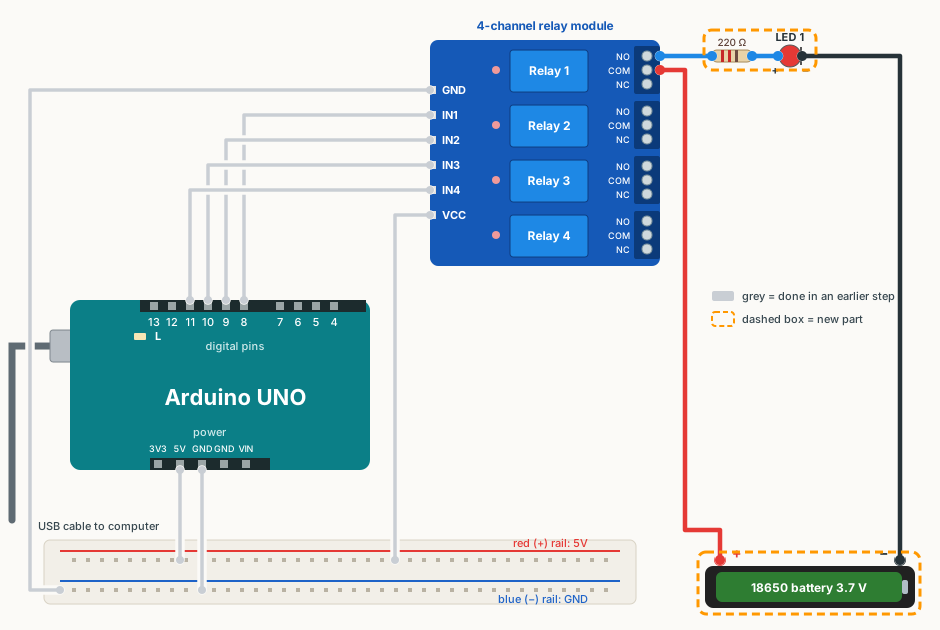
Wire it
✔ All ticked. Now upload the code.
Upload the code
- Close the Serial Monitor if it is open.
- Download the sketch below and open it in Arduino IDE (File → Open). If the IDE asks to put it in a folder, click OK.
- Plug the USB cable back in. Check Tools → Board says Arduino UNO and Tools → Port shows your COM port.
- Click Upload (the round → arrow button). Wait for Done uploading.
Show the code
// Step 2: first light.
// Switches relay 1 (pin 8) ON for 2 seconds, then OFF for 2 seconds.
// LED 1 should light up while relay 1 is ON.
// Remember: LOW = relay ON, HIGH = relay OFF.

const int RELAY1_PIN = 8;

void setup()
{
  Serial.begin(9600);
  pinMode(RELAY1_PIN, OUTPUT);
  digitalWrite(RELAY1_PIN, HIGH);   // start with relay 1 OFF
}

void loop()
{
  digitalWrite(RELAY1_PIN, LOW);    // relay 1 ON -> LED 1 on
  Serial.println("Relay 1 ON");
  delay(2000);

  digitalWrite(RELAY1_PIN, HIGH);   // relay 1 OFF -> LED 1 off
  Serial.println("Relay 1 OFF");
  delay(2000);
}
The Step 1 sketch also works: LED 1 lights when relay 1 clicks.
You should see
- LED 1 is on for 2 seconds, then off for 2 seconds, in time with relay 1's click.
If it doesn't work
LED never lights
Flip the LED round (it only works one way). Check the battery is charged and in its holder the right way. Check the resistor and LED legs share a breadboard row.
LED is on when the relay is OFF, and off when it is ON
The wire is on NC instead of NO. Move it to the NO screw (the top one in the diagram).
LED is on all the time
The NO wire may be touching COM. Check the screws are tight and no bare wire touches the next screw.