Step 6 of 6 ⏱ about 3 min
Final code
What you're adding
No new wires. Upload the final code and control everything from your phone.
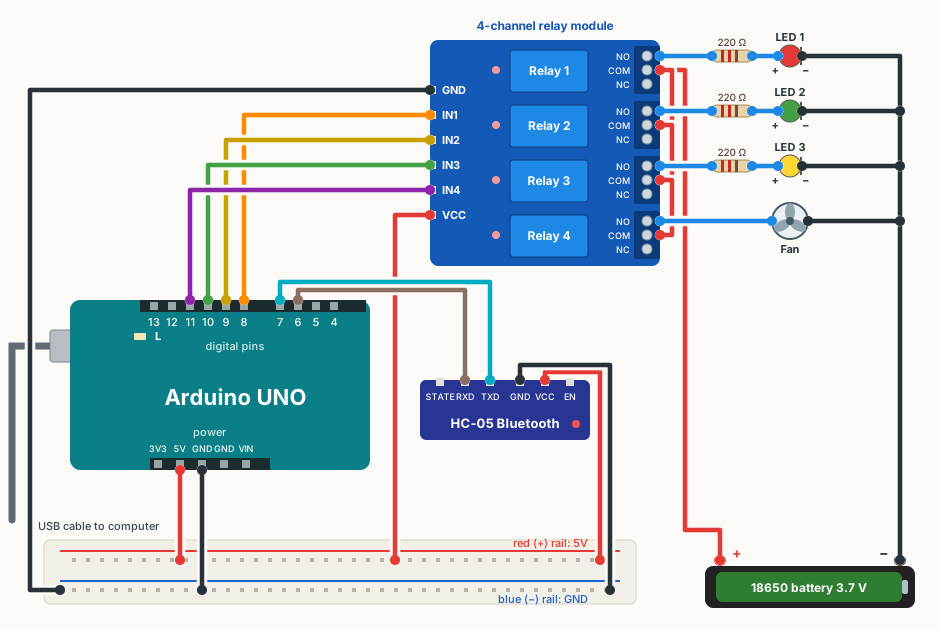
Wire it
✔ All ticked. Now upload the code.
Upload the code
- Close the Serial Monitor if it is open.
- Download the sketch below and open it in Arduino IDE (File → Open). If the IDE asks to put it in a folder, click OK.
- Plug the USB cable back in. Check Tools → Board says Arduino UNO and Tools → Port shows your COM port.
- Click Upload (the round → arrow button). Wait for Done uploading.
Show the code
// Eazytronic.com

#include <SoftwareSerial.h>
SoftwareSerial mySerial(7,6); // {tx,rx}
void setup()
{
  Serial.begin(9600);
  mySerial.begin(9600);
  pinMode(8,OUTPUT);
  pinMode(9,OUTPUT);
  pinMode(10,OUTPUT);
  pinMode(11,OUTPUT);

  digitalWrite(8,HIGH);
  digitalWrite(9,HIGH);
  digitalWrite(10,HIGH);
  digitalWrite(11,HIGH);
}
void loop ()
{
  if (mySerial.available () >0)
  {
    char data = mySerial.read();
    Serial.println(data);

    if ( data == 'A') { digitalWrite(8,HIGH); }
    if ( data == 'B') { digitalWrite(8,LOW); }
    if ( data == 'C') { digitalWrite(9,HIGH); }
    if ( data == 'D') { digitalWrite(9,LOW); }
    if ( data == 'E') { digitalWrite(10,HIGH); }
    if ( data == 'F') { digitalWrite(10,LOW); }
    if ( data == 'G') { digitalWrite(11,HIGH); }
    if ( data == 'H') { digitalWrite(11,LOW); }
  }
}
Make phone buttons
In Serial Bluetooth Terminal, the row of buttons (M1, M2 …) above the keyboard are macro buttons. Long-press one to edit it: type a Name and a Value (the letter), then save. If you need more buttons, look in the app's settings for more macro button rows.
- Light 1 ON = B, Light 1 OFF = A
- Light 2 ON = D, Light 2 OFF = C
- Light 3 ON = F, Light 3 OFF = E
- Fan ON = H, Fan OFF = G
D
H
No buttons? You can always just type the letter and tap send.
Command letters
| Relay | Arduino | Controls | ON | OFF |
|---|---|---|---|---|
| 1 | pin 8 | Light 1 | B | A |
| 2 | pin 9 | Light 2 | D | C |
| 3 | pin 10 | Light 3 | F | E |
| 4 | pin 11 | Fan | H | G |
You should see
- Each button switches its light or the fan on and off.
- The Serial Monitor shows each letter the phone sends.
If it doesn't work
A button does the opposite of its name
The letters are the wrong way round on that button. ON letters are B, D, F, H. OFF letters are A, C, E, G.
A button switches the wrong light
Check the IN wires (IN1 → pin 8 … IN4 → pin 11) and that each light is on the right relay.
Nothing happens
Is the app still connected? Reconnect from the app's Devices menu. Then re-check Step 5.
Everything turns off when the Arduino restarts
That's normal. The code switches everything off at the start.